Cybersecurity for Beginners: Essential Tips for Non-Technical Users
The digital world can feel like a minefield when you’re not technically inclined. Every day, we hear about data breaches, viruses, and online scams. It’s enough to make anyone feel overwhelmed. However, protecting yourself online doesn’t require a degree in computer science. Cybersecurity, at its core, is about establishing smart habits and using simple, accessible tools.
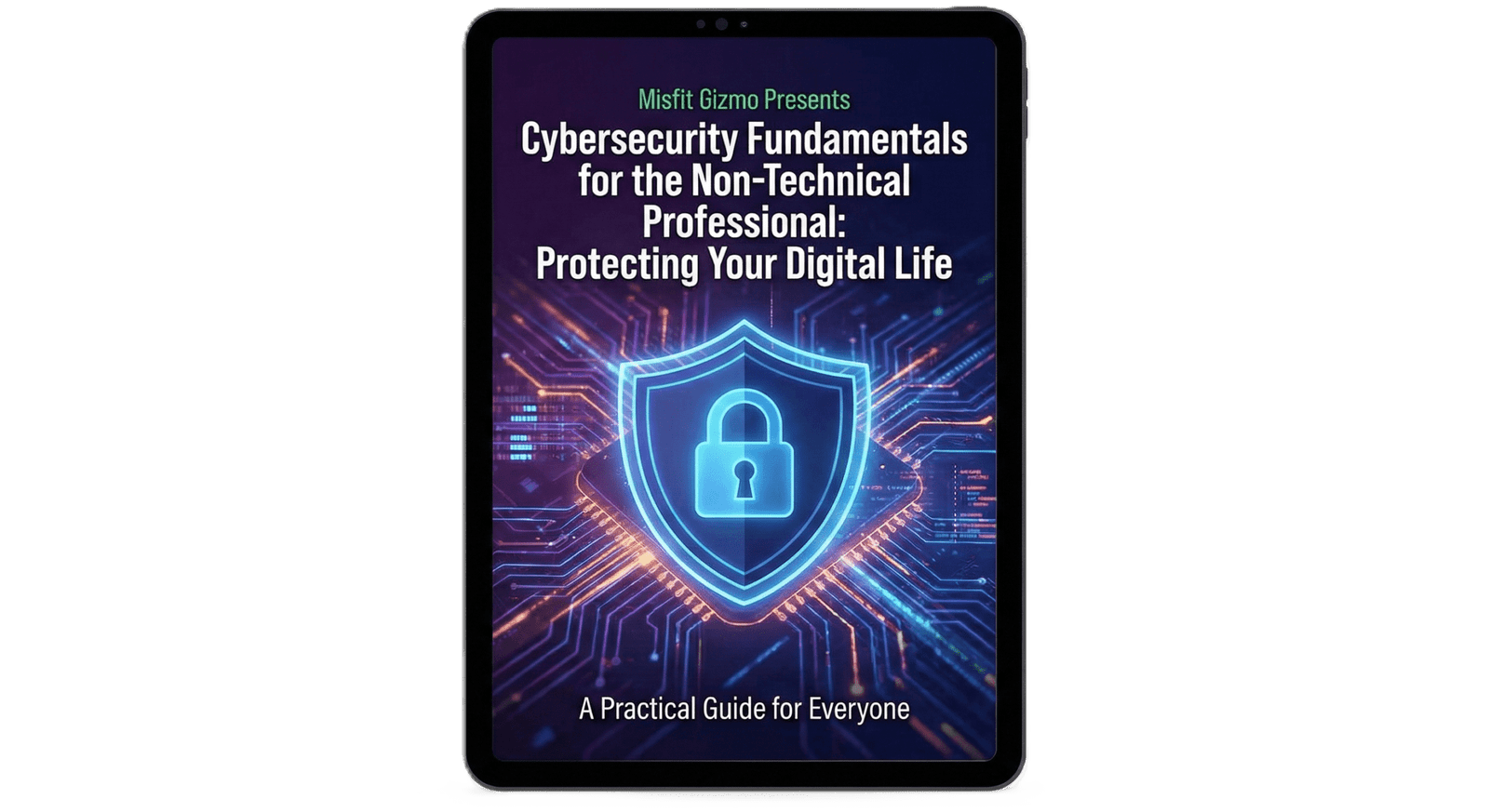
If you’re looking for a comprehensive, easy-to-digest resource that cuts through the jargon, you’re in the right place. This article serves as your initial roadmap, but for those who want a complete, step-by-step approach, we highly recommend the Non-Technical Cybersecurity Guide. It’s designed specifically to empower users who feel intimidated by complex security topics, offering practical steps you can implement immediately to secure your digital life.
This guide is your non-technical cybersecurity guide to understanding the basics, ensuring you can navigate the internet safely and confidently without needing to become a tech expert.
The Foundation: Strong Passwords and Multi-Factor Authentication (MFA)
The single most important defense against unauthorized access is your password. Unfortunately, many people still use easily guessed passwords like “123456” or “password.”
Creating Truly Strong Passwords
- Length is Key: Aim for at least 12 characters, but 16 or more is better.
- Variety Matters: Use a mix of uppercase letters, lowercase letters, numbers, and symbols.
- Avoid Personal Information: Never use names, birthdates, or pet names.
- Use a Password Manager: Tools like 1Password, Bitwarden, or LastPass generate and securely store complex passwords for all your accounts, meaning you only have to remember one master password.
Why MFA is Non-Negotiable
Multi-Factor Authentication (MFA), sometimes called Two-Factor Authentication (2FA), adds a crucial second layer of security. Even if a hacker steals your password, they can’t access your account without that second factor.
The most common forms of MFA include:
- Authenticator Apps: (Recommended) Apps like Google Authenticator or Authy generate time-sensitive codes.
- SMS Text Messages: A code is sent to your phone (less secure, but better than nothing).
- Physical Security Keys: Devices like YubiKey that plug into your computer.
Understanding Phishing and Social Engineering
Most cyberattacks don’t involve complex hacking; they involve tricking you. This is known as phishing or social engineering. Phishing emails, texts (smishing), or calls (vishing) try to manipulate you into revealing sensitive information or clicking malicious links.
How to Spot a Phishing Attempt
Look out for these red flags:
| Red Flag | What It Looks Like | Action to Take |
|---|---|---|
| Urgent or Threatening Language | “Your account will be suspended immediately if you don’t click this link.” | Verify directly on the official website, not through the email link. |
| Poor Grammar/Spelling | Emails from major companies usually have professional writing. Errors are a huge giveaway. | Delete the email immediately. |
| Suspicious Sender Address | The email address doesn’t match the company (e.g., “amazon-support@gmail.com”). | Check the full email header, not just the display name. |
| Unexpected Attachments | An invoice or document you weren’t expecting, especially if it’s a ZIP or executable file. | Never open unexpected attachments. |
If you receive a suspicious communication, the safest action is always to ignore it. If you believe it might be legitimate (e.g., a bank notification), open your browser, type the official website address yourself, and log in directly—do not click links in the suspicious message.
Keeping Your Software Updated (Patching)

Software updates are often seen as annoying interruptions, but they are absolutely essential for security. When companies like Microsoft, Apple, or Google discover a vulnerability (a “hole” in their software), they release a patch to fix it. If you don’t update, that hole remains open for hackers to exploit.
The Importance of Automation
The best way to handle updates is to let your devices do the work:
- Enable Automatic Updates: Ensure your operating system (Windows, macOS, iOS, Android) is set to install updates automatically overnight.
- Browser Updates: Modern browsers like Chrome, Firefox, and Edge usually update themselves automatically. Make sure this feature is enabled.
- App Updates: Regularly check your phone’s app store (Google Play or Apple App Store) and install pending updates.
Ignoring updates is like leaving your front door unlocked after the locksmith told you they fixed the lock.
Securing Your Home Network and Wi-Fi
Your home Wi-Fi network is the gateway to all your devices. Securing it is critical for a strong non-technical cybersecurity guide defense.
Router Security Checklist
- Change the Default Password: Your router came with a default login (often “admin” and “password”). Change this immediately to a unique, strong password.
- Use WPA3 Encryption: Check your router settings and ensure you are using WPA2 or, preferably, the newer WPA3 encryption standard. Avoid WEP, which is easily broken.
- Guest Network: If you have visitors, set up a separate guest Wi-Fi network. This prevents guests’ potentially compromised devices from accessing your main network and private files.
For those who want a deeper dive into securing their home environment, the Non-Technical Cybersecurity Guide offers specific, step-by-step instructions on configuring common home routers and smart devices securely.
Data Backup: The Ultimate Safety Net
Cybersecurity isn’t just about preventing attacks; it’s also about minimizing damage when an attack inevitably occurs. Ransomware, hardware failure, or accidental deletion can wipe out years of data instantly. A reliable backup strategy is your insurance policy.
The 3-2-1 Backup Rule (Simplified)
This is the gold standard for data protection:
- 3 Copies of Your Data: The original files plus two backups.
- 2 Different Media Types: For example, one copy on your computer and two backups on different devices (like an external hard drive and cloud storage).
- 1 Offsite Copy: At least one copy stored remotely (e.g., using cloud services like Backblaze or Carbonite).
If you follow the 3-2-1 rule, even if a virus destroys your computer and your external hard drive, you still have a clean copy of your data safe in the cloud.
Conclusion: Taking Control of Your Digital Safety
Cybersecurity doesn’t have to be intimidating. By mastering strong passwords, enabling MFA, recognizing phishing, keeping your software updated, and backing up your data, you’ve already established a defense far superior to most internet users. These are simple, actionable steps that require consistency, not technical genius.
Ready to take the next step and build an impenetrable digital fortress without the complexity? You can check it out and grab your Non-Technical Cybersecurity Guide here.